

Introduction:
Managing staff leave policies manually can be time-consuming for schools and colleges. An organized leave management process helps institutions maintain staff leave allocations and manage paid and unpaid leave more efficiently.
Aptora IMS (Institution Management System) provides a Staff Dashboard feature that allows administrators to assign leave policies to staff members.
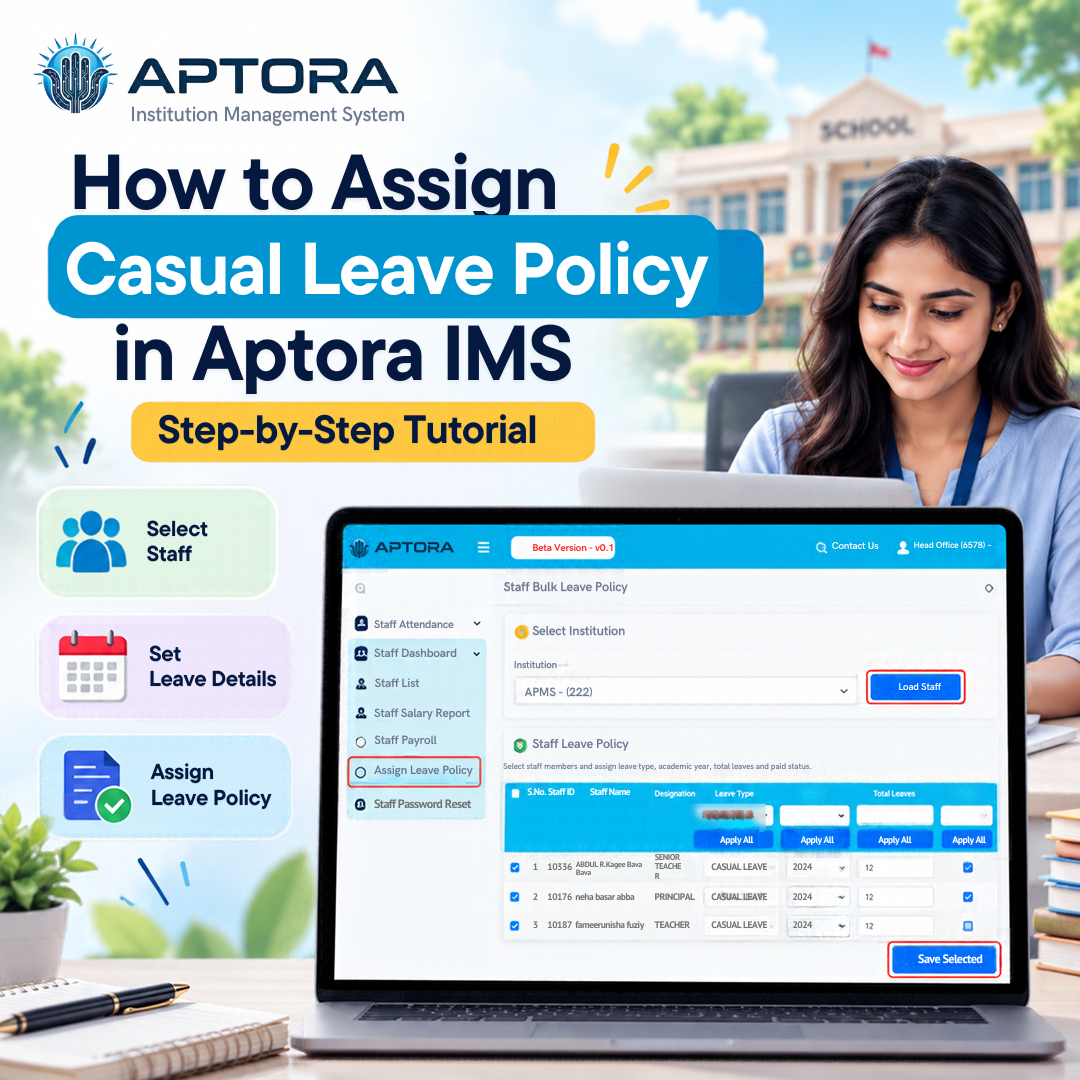
In this step-by-step tutorial, you will learn how to assign a casual leave policy in Aptora IMS, including how to select an institution, load staff details, enter leave information, and save the policy successfully.
Prerequisites
Before applying for casual leave in Aptora IMS, make sure
you have:
Use the following structure and add your actual Aptora
screenshots under each step.
Step 1: Login to Aptora.
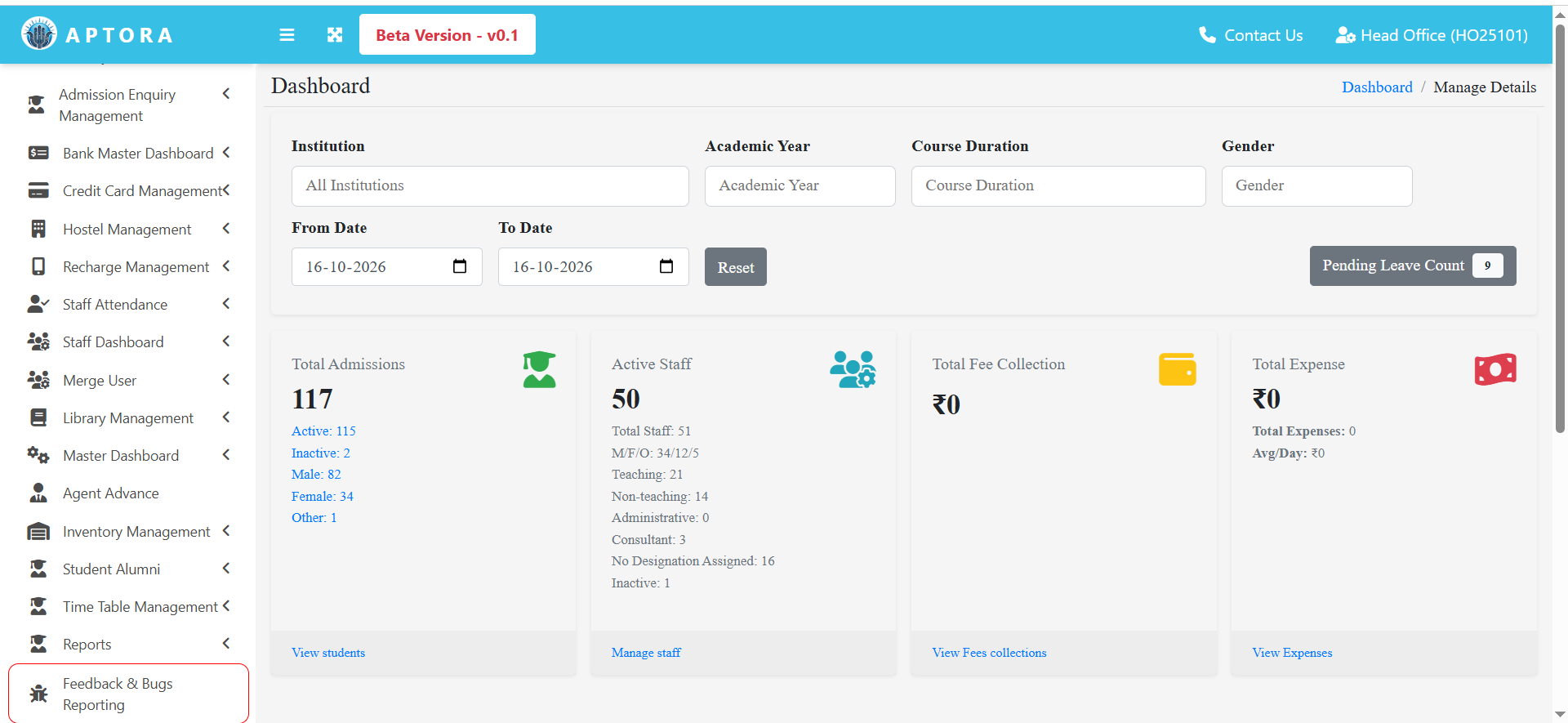
Open Aptora dashboard and log in using your registered institution credentials.
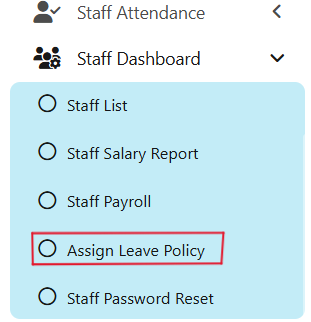
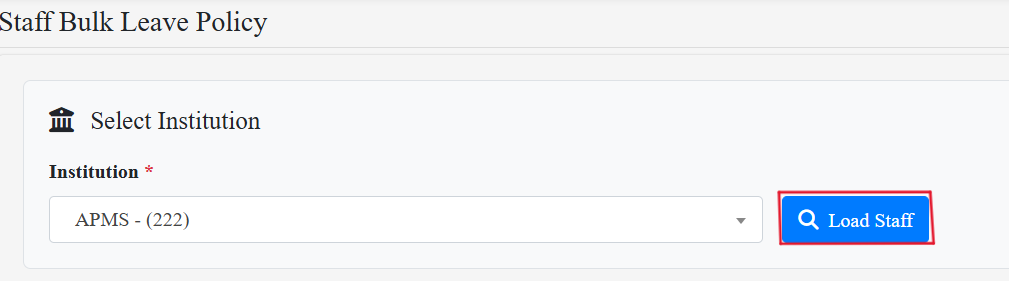
Select the institution from the dropdown menu and click on Load Staff
Step 3: Apply casual leave.
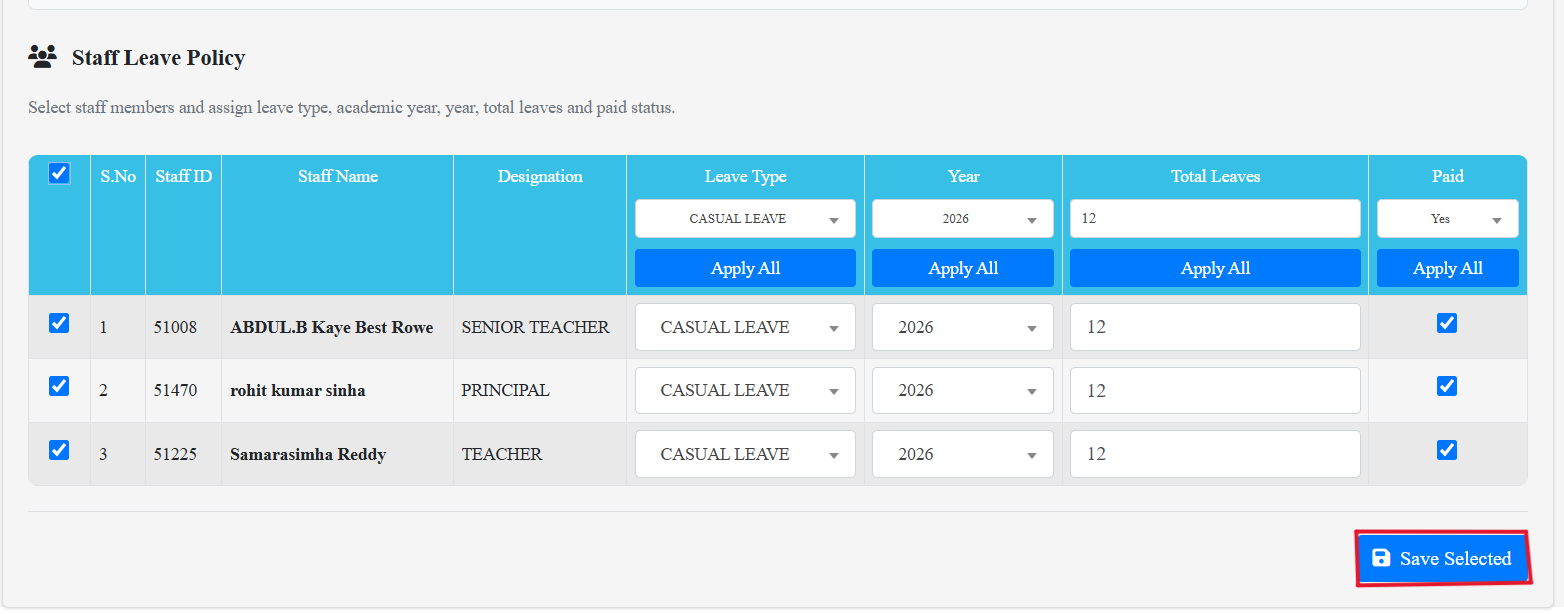
A notification bar will appear at the top of the screen displaying the message "Policy assigned successfully.”

If a staff member needs additional leave, select the required leave type, year, and total number of leaves. Set Paid to No to assign unpaid leave, allowing staff members to apply for additional unpaid leaves.
Conclusion:
Assigning a casual leave policy in Aptora IMS helps educational institutions organize staff leave allocations. By following the steps in this tutorial, administrators can select an institution, load staff details, configure the leave type and allocation, and save the policy.
Aptora IMS helps schools and colleges streamline administrative processes through its institution management features, making staff leave policy management more structured and efficient.
Related Tutorial: How to issue a transfer certificate in aptora.
Looking to issue a transfer Certificate(TC) in Aptora IMS? Read our step-by-step guide:
https://www.aptora.in/blog/how-to-issue-a-transfer-certificate-tc-in-aptora-step-by-step-guide
📞 Ready to organize your classrooms better?
Talk to our expert or contact us for further queries